Classify sensitive fields in diagnostic logs
Classify sensitive fields in diagnostic logs
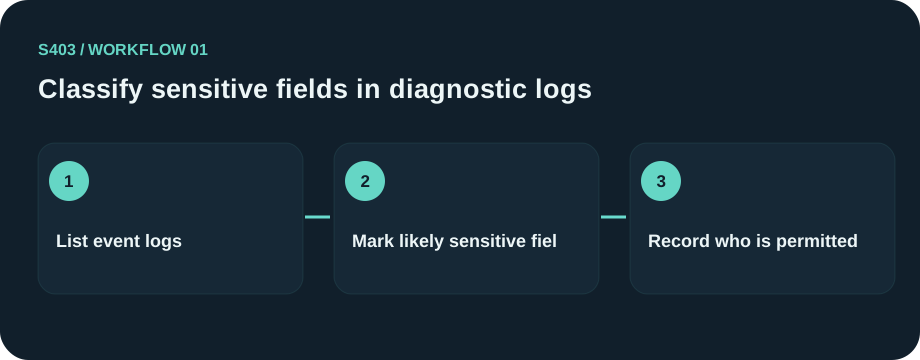
Define the contents of a Windows diagnostic evidence archive
A Windows workstation crashes, and the support team needs logs that explain the failure without revealing customer data or account credentials. Before discussing encryption, list what the project actually produces. For support engineers, help-desk analysts and endpoint administrators, the records can include Event Viewer exports, diagnostic CSVs, minidump archives, system information reports and reproduction screenshots. Different types may deserve different recipients and retention rules.

Create a data inventory
Enumerate Event Viewer exports, diagnostic CSVs, minidump archives, system information reports and reproduction screenshots. For every type, note whether it contains direct identifiers, whether the document must remain editable, and whether it has an authoritative owner. Do not upload real example files to a public test service.
Define record boundaries
Use a case or project identifier in filenames while keeping the identity mapping in its own controlled location. The Windows diagnostic evidence archive should not silently include every download made during the work; temporary references and personal files should be excluded unless their purpose is documented.

Accept or reject checklist
Keep a record only if it advances one of the documented activities: incident reproduction, evidence collection, support handoff and case closure. Flag exceptions for the assigned support case owner and a designated security reviewer and make a written decision about versions that conflict.
Sample inventory entry: Event Viewer exports — owner: the assigned support case owner and a designated security reviewer; purpose: incident reproduction; recipient: named and approved; retention: policy reference required.
Practical implementation checklist
- Identify the accountable approver for Windows diagnostic evidence and write down the exact event being protected.
- Choose a non-sensitive sample drawn from the same format as system information reports; never use a real identity, key or patient record in a public example.
- Compare the unprotected working copy, restricted recipient copy and intended retained copy. Confirm where extra versions are created.
- Record the approved destination, any failed test, and a date for reassessing the workflow when personnel or software changes.
Questions readers should resolve
Should every file related to Windows diagnostic evidence be retained?
No. Preserve what is required for the documented work and applicable retention obligations; exclude unrelated, duplicated or unsupported material. For Windows support artifacts, this means checking minidump files, handling trace tokens separately, and using a fake Event Viewer export as the review example. The acceptance ledger should name who entered the record, whether the identifying field is necessary, and which official retention rule applies.
Who should approve this Windows diagnostic evidence workflow?
Assign a named owner. In this context, start with the assigned support case owner and a designated security reviewer and confirm the applicable organizational authority.
Research and documentation
These sources support the technical boundaries described here. They are not substitutes for testing the current software on the target device, checking legal requirements, or independently confirming product claims.

- Microsoft: Diagnostic Data Viewer
- NewSoftwares Folder Lock: documented features
- Folder Lock FAQ and lost-password limitations
Editorial note: No paid link placement is required for this guide. Product information, if mentioned, describes one possible tool and should not be read as an endorsement or an assertion of universal compatibility.