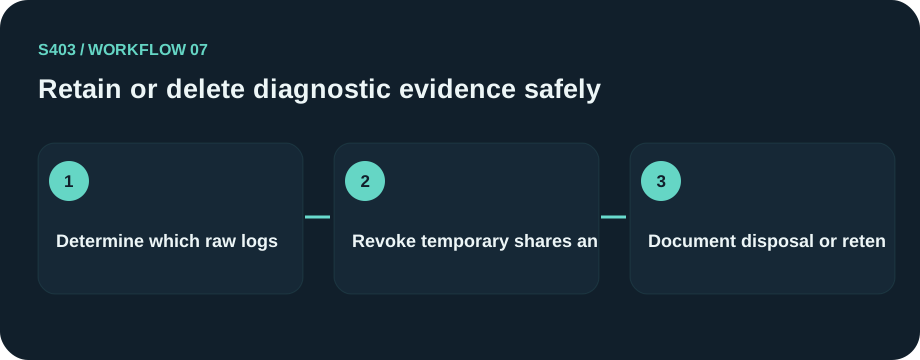
Retain or delete diagnostic evidence safely
Retain or delete diagnostic evidence safely
Troubleshoot protected diagnostic bundles
An encrypted file that does not open could involve a missing locker, wrong account, incompatible version, a permissions problem or a damaged copy. With Windows diagnostic evidence, investigate without deleting originals or promising recovery from a forgotten encryption password.
Classify the symptom first
Is the Windows diagnostic evidence file missing, unreadable, out of date or available only on a lost device? Check the last known good location and file extension before changing any settings. Preserve a byte-for-byte copy where possible.
Use a conservative diagnostic sequence
Check access credentials, compatible app versions, available disk space and whether a restore point exists. Avoid third-party “instant decryption” claims and do not overwrite an older working copy. Verify the archive can be opened by the intended support recipient in a controlled test, without sharing a working credential.

Escalate without exposing secrets
Record non-sensitive error messages, product version and timestamps. Explain what troubleshooting has already occurred. Do not send a password, encryption key or live sensitive record to an unverified support channel. For Windows support artifacts, this means checking minidump files, handling trace tokens separately, and using a fake Event Viewer export as the review example. Keep the failed copy intact and work through reversible checks before considering additional tools.
If a copy of diagnostic CSVs fails to open, inspect the format and restore path before treating it as a bad encryption key.
Practical implementation checklist
- Identify the accountable approver for Windows diagnostic evidence and write down the exact event being protected.
- Choose a non-sensitive sample drawn from the same format as reproduction screenshots; never use a real identity, key or patient record in a public example.
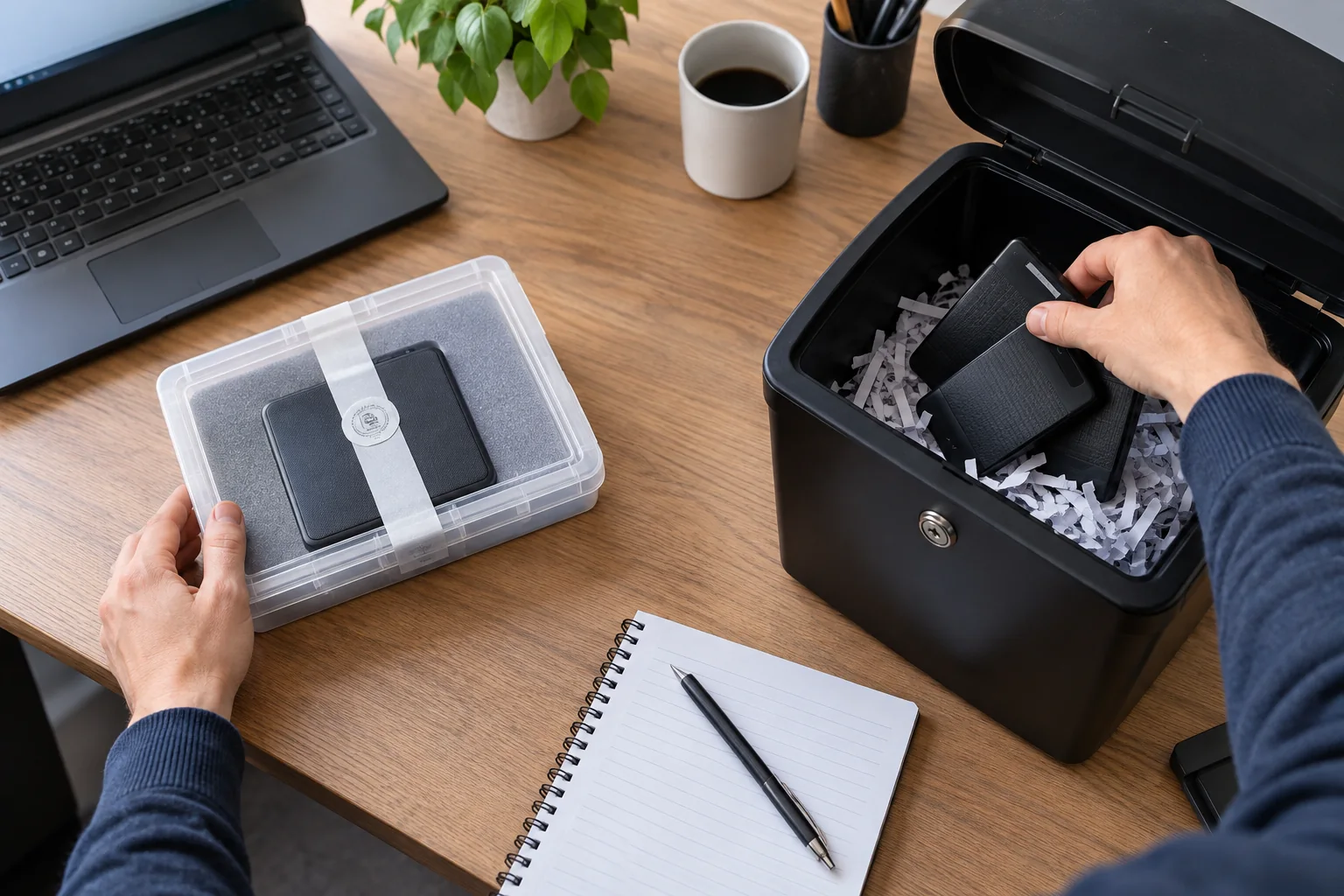
- Compare the unprotected working copy, restricted recipient copy and intended retained copy. Confirm where extra versions are created.
- Record the approved destination, any failed test, and a date for reassessing the workflow when personnel or software changes.
Questions readers should resolve
Should I use an online unlocker on a sensitive archive?
Avoid uploading private archives to unverified services. Work from documented recovery methods and an intact backup. For Windows support artifacts, this means checking minidump files, handling trace tokens separately, and using a fake Event Viewer export as the review example. Keep the failed copy intact and work through reversible checks before considering additional tools.
Who should approve this Windows diagnostic evidence workflow?
Assign a named owner. In this context, start with the assigned support case owner and a designated security reviewer and confirm the applicable organizational authority.
Research and documentation
These sources support the technical boundaries described here. They are not substitutes for testing the current software on the target device, checking legal requirements, or independently confirming product claims.
- Microsoft: Diagnostic Data Viewer
- NewSoftwares Folder Lock: documented features
- Folder Lock FAQ and lost-password limitations
Editorial note: No paid link placement is required for this guide. Product information, if mentioned, describes one possible tool and should not be read as an endorsement or an assertion of universal compatibility.